Let’s be honest: tracking expenses as a freelancer is painful. You’re digging through Gmail for receipts, squinting at bank statements at midnight, and still not 100% sure what’s actually tax-deductible. Sound familiar?
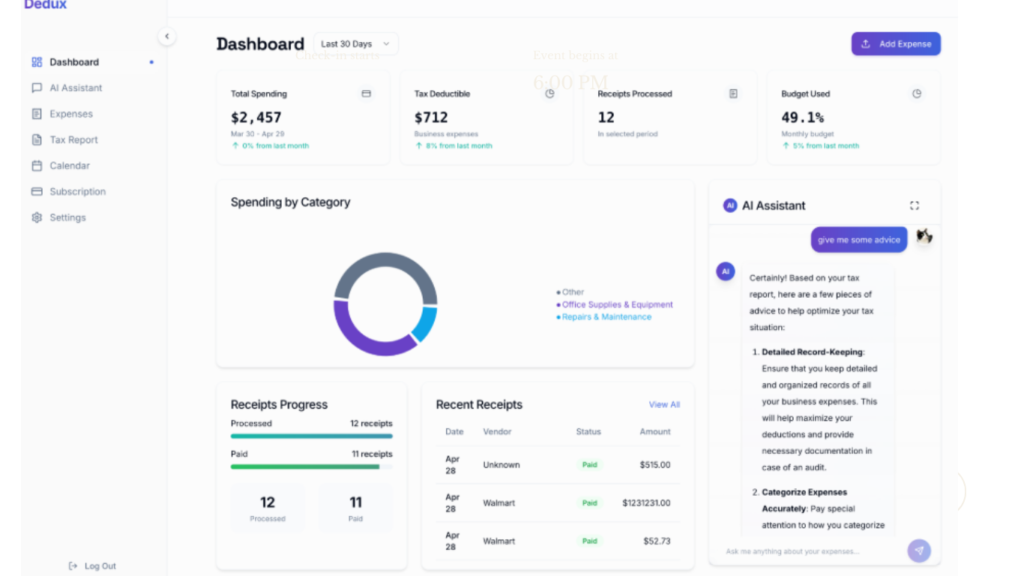
Here’s the good news: AI has completely changed this game. Modern AI-powered tools can now scan receipts in seconds, categorize your spending automatically, flag tax deductions you’d miss, and generate financial reports, all without you lifting a finger. According to a 2024 FreshBooks survey, freelancers spend an average of 3–5 hoursper week on administrative tasks like invoicing and expense tracking. That’s 150–250hours per year you could reclaim with the right automation.
1. Why Manual Expense Tracking Is Costing You More Than You Think
Most freelancers underestimate the true cost of doing their finances manually. It’s not just the time; it’s the money you’re leaving on the table every single month.
Here’s what’s actually happening when you track expenses manually:
- You miss deductible expenses buried in emails or forgotten receipts
- You misclassify spending, which causes accounting headaches at tax time
- You waste valuable hours that could be spent on billable client work
- You lose money because small expenses add up (subscriptions, tools, internet, equipment)
- You risk audit red flags from inconsistent record-keeping
The IRS estimates that self-employed individuals miss 20% of valid deductions on average. On a $60,000 freelance income, that’s potentially $2,000–$4,000 inunnecessary taxes paid every single year.
2. How AI Expense Tracking Actually Works
Before diving into the steps, it helps to understand what’s actually happening under the hood. Modern AI expense tools combine several powerful technologies:
Optical Character Recognition (OCR)
When you snap a photo of a receipt, OCR technology reads the text, including the vendor name, date, amount, and items purchased, and digitizes it instantly. Tools like Expensify and Dext use OCR accuracy rates above 98%.
Machine Learning Categorization
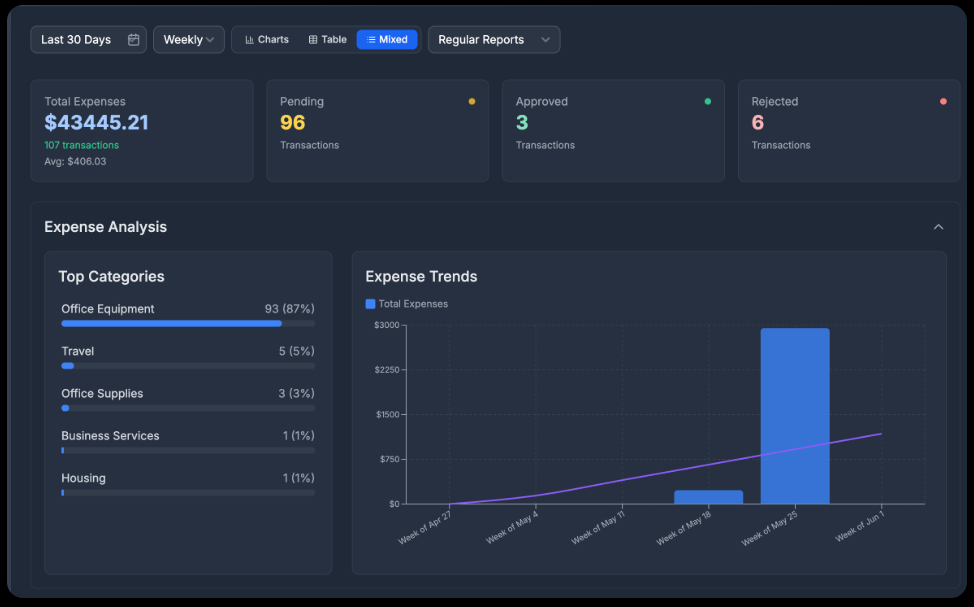
AI models are trained on millions of transactions. They learn your spending patternsand automatically assign categories like ‘Software Tools’, ‘Travel’, or ‘Home Office’, getting smarter every month you use them.
Bank Feed Integration
AI tools connect directly to your bank accounts and credit cards via secure API connections (like Plaid). Every transaction is automatically imported, so nothing slips through the cracks.
Natural Language Processing (NLP)
Some newer tools let you type or speak: “Log $45 lunch with client Sarah,“ and the AI parses, categorizes, and records it immediately.
3. Step-by-Step: Automate Your Freelance Expense Tracking
Let’s get practical. Here’s exactly how to set up a fully automated expense tracking system using AI.
Step 1 — Choose the Right AI Expense Tool
Not all expense tools are created equal. As a freelancer, you need something that balances power with simplicity. Here are the top options:
| Tool | Best For | AI Features | Starting Price |
| Expensify | Solo freelancers | SmartScan OCR, auto-categorize | $5/mo |
| FreshBooks | Invoicing + expenses | AI receipt capture, mileage | $17/mo |
| QuickBooks Self-Employed | Tax-focused freelancers | Auto tax categorization | $15/mo |
| Dext (Receipt Bank) | High-volume receipts | 99%+ OCR accuracy | $12/mo |
| Keeper Tax | Tax deduction AI | AI deduction finder | $16/mo |
| Wave | Budget-conscious | Bank sync, basic AI | Free |
Pro tip: Start with a free trial of 2–3 tools before committing. Pay attention to how well the AI categorizes YOUR specific freelance expenses in the first week.
Step 2 — Connect Your Bank Accounts & Cards
This is where the automation magic starts. Most AI tools support bank sync through Plaid or similar secure connections.
Here’s how to do it:
- Open your chosen tool and navigate to ‘Accounts’ or ‘Connections.’
- Click ‘Add Bank Account’ and search for your bank
- Log in with your banking credentials (this is encrypted and secure)
- Authorize the read-only connection (the tool can never move your money)
- Repeat for every card and account you use for business
- Enable automatic transaction import (usually daily or real-time)
Security note: Tools like Expensify and QuickBooks use 256-bit encryption and are SOC 2 Type II certified. Your banking credentials are never stored by the expense app.
Step 3 — Set Up AI Receipt Scanning
Paper receipts are the #1 enemy of good expense tracking. AI receipt scanning eliminates this problem permanently.
Set it up in 3 ways:
Mobile App (Recommended):
- Download the expense app on your phone
- Enable camera permissions
- Photograph receipts immediately after purchase — the AI extracts all data in seconds
- The receipt is filed, categorized, and matched to your bank transaction automatically
E-Mail Forwarding:
- Set up a dedicated forwarding rule in Gmail or Outlook
- Any receipt email gets auto-forwarded to your tool’s inbox (e.g., receipts@expensify.com)
- AI parses the email and logs the expense with zero manual entry
Browser Extension:
- Tools like Expensify and Ramp offer browser extensions
- Shop online? One click captures the order confirmation as an expense
- Works with Amazon, Stripe, PayPal invoices, and more
Step 4 — Create Smart Expense Categories
Generic categories like ‘Miscellaneous’ are useless for tax time. Set up categories that match how freelancers actually spend and how the IRS organizes deductions.
Recommended category structure for freelancers:
| Category | Examples | Tax Schedule Line |
| Software & Subscriptions | Figma, Notion, Zoom, Adobe | Schedule C, Line 22 |
| Home Office | Internet, utilities (% of home) | Schedule C, Line 30 |
| Professional Development | Courses, books, conferences | Schedule C, Line 22 |
| Client Meals & Entertainment | Lunches, coffees with clients | Schedule C (50% deductible) |
| Travel & Transport | Flights, Uber, mileage, hotels | Schedule C, Line 24 |
| Equipment & Hardware | Laptop, monitor, accessories | Schedule C, Line 13 |
| Marketing & Advertising | Website, social ads, portfolio | Schedule C, Line 8 |
| Contractor Payments | Subcontractors, VAs | Schedule C, Line 11 |
Most AI tools let you train the categorization over time. Every time you correct a wrong category, the AI learns and improves within 2–3 months; accuracy typically exceeds 95%.
Step 5 — Automate Tax Deduction Flagging
This is where AI earns its keep. Advanced tools don’t just track; they actively find money you’d otherwise miss.
Here’s what smart AI deduction tools look for:
- Software subscriptions used for work (even streaming if you review content for clients)
- Phone bills: the business-use percentage is deductible
- Home office: calculated as square footage percentage of rent/mortgage
- Mileage: often tracked via GPS in the mobile app automatically
- Professional memberships and dues
- Health insurance premiums (self-employed deduction)
- Retirement contributions (SEP-IRA, Solo 401k)
Tools like Keeper Tax use AI to analyze your spending patterns and send weekly alerts: “We found 3 new potential deductions worth $230 this week.”
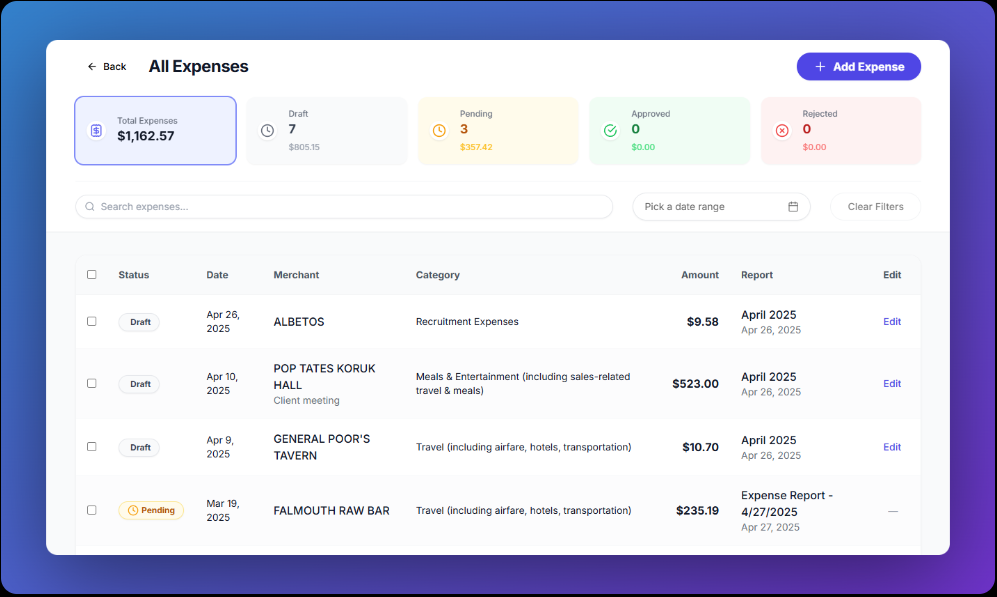
Step 6 — Generate Reports on Autopilot
The final piece: automated reporting so you’re always prepared for taxes, client billing, or just understanding where your money goes.
Set these up once and forget them:
- Monthly P&L summary: auto-emailed to your inbox on the 1st
- Quarterly estimated tax report: so, you never underpay the IRS
- Annual expense summary: ready for your accountant in January
- Per-client expense report: track project profitability easily
- Category spending trends: spot patterns and optimize costs
Power User Tip: Connect your expense tool to QuickBooks or Xero via Zapier for a fully automated accounting pipeline. Bank sync → AI categorization → accounting software → tax reports. All on autopilot.
4. Real Case Examples: Freelancers Who Automated Their Finances
Case Study 1: Maria, Freelance Graphic Designer (Austin, TX)
Maria was spending 4+ hours every Sunday sorting receipts and updating spreadsheets. She switched to FreshBooks with AI receipt scanning in January 2025.
- Setup time: 2 hours to connect accounts and configure categories
- Week 1 result: AI auto-categorized 87% of transactions correctly
- Month 3 result: 99% accuracy, zero manual entry required
- Tax season result: Saved $1,840 in previously missed deductions
- Time saved: 3.5 hours per week reclaimed for client work
Case Study 2: Sofia, Freelance Content Writer (NYC)
Sofia used Keeper Tax specifically for its AI deduction-finding feature. The tool identified that her dedicated writing space, a converted spare room, qualified for the home office deduction.
Result: $2,200 additional deduction in Year 1, she never would have claimed manually. The tool paid for itself 11x over.
5. Best AI Expense Tracking Tools for Freelancers — Deep Comparison
| Feature | Expensify | FreshBooks | QuickBooks SE | Keeper Tax | Wave |
| AI Receipt Scanning | ✅ Best-in-class | ✅ Very good | ✅ Good | ✅ Good | ⚠️ Basic |
| Auto-Categorization | ✅ ML-powered | ✅ Yes | ✅ Yes | ✅ Yes | ✅ Yes |
| Bank Sync | ✅ Yes | ✅ Yes | ✅ Yes | ✅ Yes | ✅ Yes |
| Tax Deduction AI | ⚠️ Limited | ⚠️ Limited | ✅ Built-in | ✅ Best-in-class | ❌ No |
| Mileage Tracking | ✅ GPS auto | ✅ GPS auto | ✅ GPS auto | ❌ No | ❌ No |
| Invoicing | ⚠️ Basic | ✅ Full-featured | ⚠️ Basic | ❌ No | ✅ Yes |
| Free Plan | ✅ Limited | ❌ No | ❌ No | ❌ No | ✅ Full |
| Best For | Expense-heavy | All-rounder | Tax focus | Deductions | Budget |
6. Common Mistakes Freelancers Make With AI Expense Tracking
Even with great AI tools, these mistakes can undermine your system:
❌ Mistake 1: Mixing Personal and Business Accounts
AI gets confused when business and personal spending share the same account. Open a dedicated business checking account and card. This single change makes everything clearer.
❌ Mistake 2: Never Train the AI
When the AI miscategorizes something, most freelancers just ignore it. But correcting it teaches the model. Spend 5 minutes weekly reviewing and correcting within 90 days your accuracy will be near-perfect.
❌ Mistake 3: Using Only One Tool
For complex freelance finances, consider a stack: Dext for receipt capture → QuickBooks for bookkeeping → Keeper Tax for deduction optimization. Each tool does one thing brilliantly.
❌ Mistake 4: Skipping the Initial Category Setup
If you don’t configure your categories upfront, the AI will use generic defaults that don’t match your freelance business. Spend 30 minutes on this; it saves hours later.
❌ Mistake 5: Not Backing Up or Exporting Data
Always export your expense data quarterly. If you switch tools or your account lapses, you could lose records the IRS requires you to keep for 3–7 years.
7. Conclusion: Your Time Is Worth More Than This
Automating your expense tracking with AI isn’t a luxury for big businesses; it is a competitive advantage for smart freelancers. The tools are affordable(many under $20/month), the setup takes one afternoon, and the payoff in time saved, money recovered, and stress eliminated compounds every single month.
Here’s your action plan for this week:
- Pick one tool from the comparison table (start with Wave if budget is tight, FreshBooks if you want the full package)
- Open a dedicated business bank account if you don’t have one
- Spend 2 hours setting up bank sync and categories
- Install the mobile app and scan your next receipt immediately
- Set up email forwarding for receipt emails
- Schedule a 5-minute weekly review for the first 3 months to train the AI
The freelancers who thrive long-term aren’t just better at their craft; they’re better at running their business. Automating the boring stuff is how you get there.
Ready to automate? Start your free trial with FreshBooks or Expensify today.